Pabbly
Pabbly Connect is a powerful workflow automation platform that allows you to connect YourGPT with hundreds of other applications without coding.
Before You Begin
Before starting the integration process, make sure you have:
- A YourGPT account: Sign up here
- A Pabbly Connect account (free or paid)
Integration Process
- Connect to Pabbly
- Log in to your Pabbly Connect account
- Search for "YourGPT Chatbot" in the Pabbly Connect app directory
- Select and connect your "YourGPT Chatbot" to Pabbly Connect
- Set Up API Authentication
- Head over to YourGPT Dashboard
- Navigate to Integrations ⇒ API Integration ⇒ Generate API key
- Copy your API key for use in Pabbly Connect
Note
For detailed instructions on generating API keys, visit the API Integration Guide
- Create a Session
- In your workflow, add a new action and select "YourGPT Chatbot"
- Choose
"Create Session"as the action - Provide the
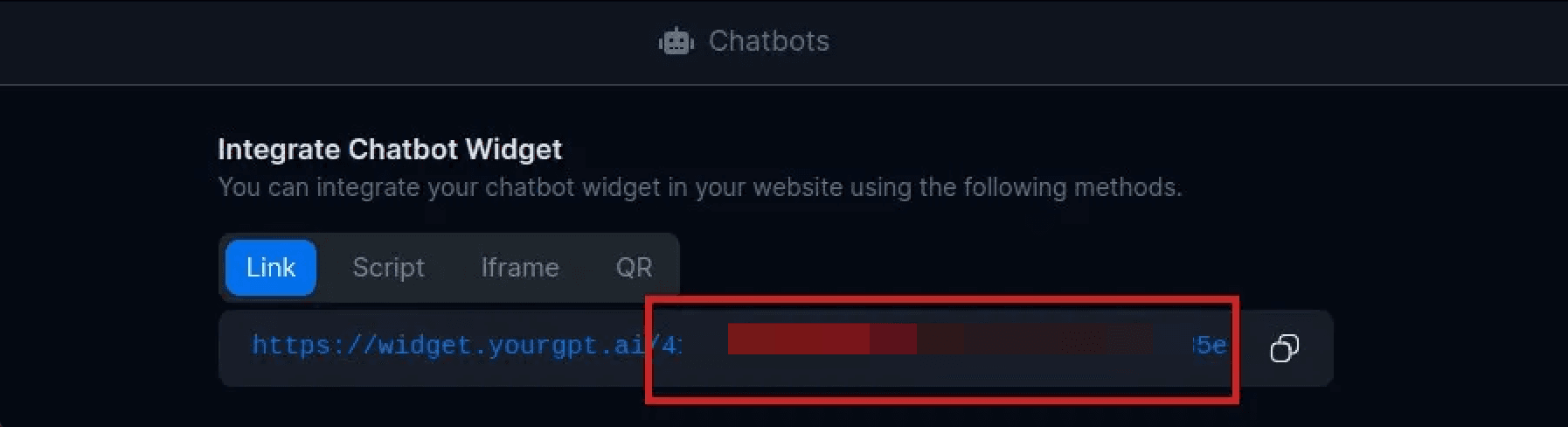
widget_uidin the action setup - The
widget_uidcan be found in your YourGPT Chatbot Integrations
Note
The Create Session action initializes a conversation with your YourGPT chatbot and returns a
session_uidthat you'll need for sending messages. - Send a Message
- Add another "YourGPT Chatbot" action to your workflow
- Select "Send Message" as the action
- Configure the following parameters:
widget_uid: The same ID used in the Create Session actionmessage: The text content you want to sendsession_uid: Map this from the output of the Create Session action
- Test and Deploy
- Test your workflow thoroughly to ensure all actions work correctly
- Once tested, you can activate your workflow for production use
- Consider adding error handling for robustness